
How to Move Your CRM Data from Pipedrive or Zoho to Nudge Without Disrupting Your Workflow
Switching CRMs is a major decision for founders, agencies, and growing sales teams who depend on systems like Pipedrive or Zoho to manage every deal and relationship. Migration often feels risky. Teams worry about losing key data or causing confusion in routines that already work. Most hesitate because cleaning and moving legacy CRM data sounds tedious and time-consuming. But a well-organized approach makes transferring your CRM data into Nudge not only possible, but far less stressful. With a practical plan, your team can maintain all essential records and get back to focusing on active deals quickly.
How do you export CRM data from Pipedrive or Zoho?
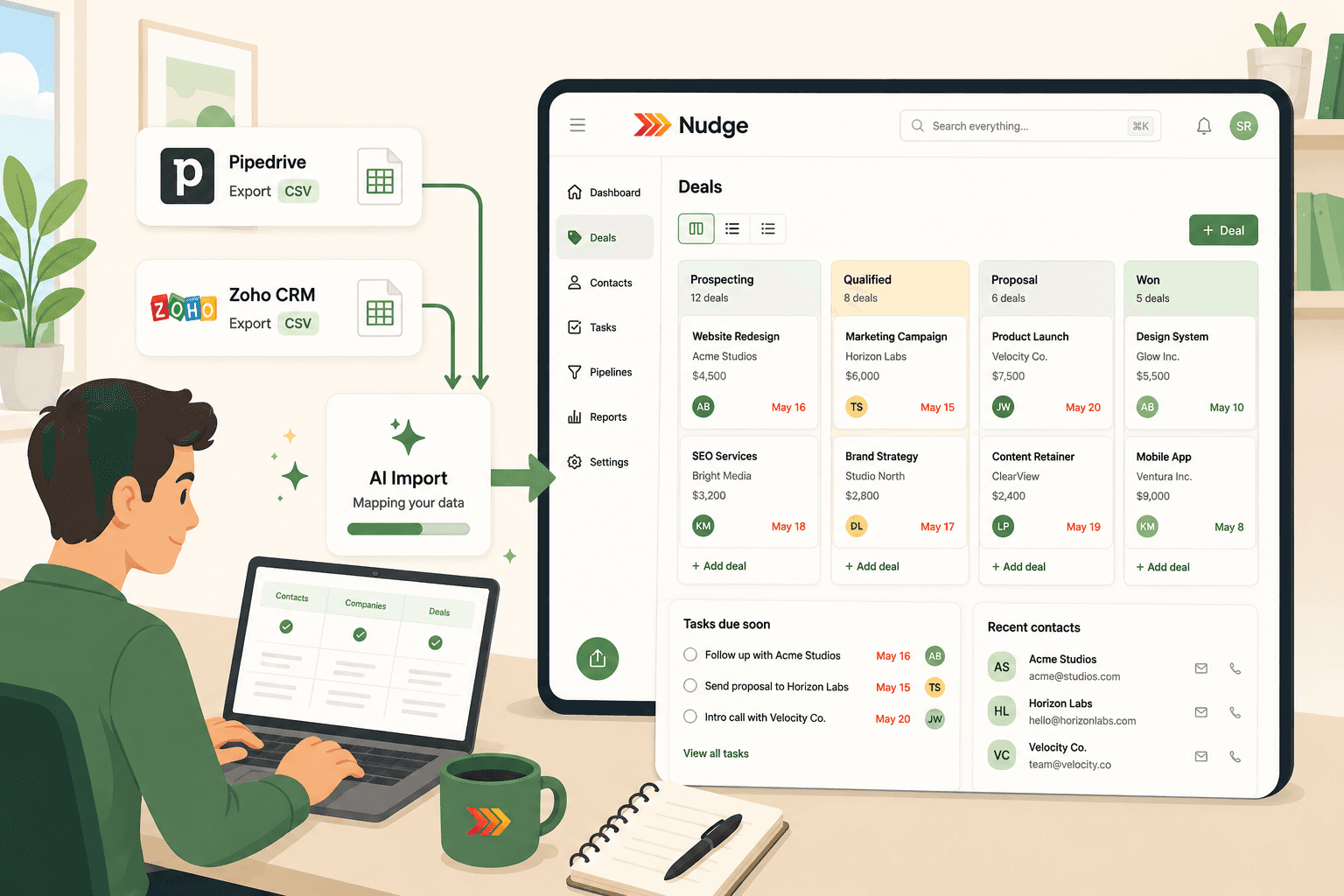
You can export your primary CRM data from both Pipedrive and Zoho, but each platform handles exports a bit differently. The best way to prepare your records for Nudge is to export contacts, companies, and deals as CSV files. Nudge directly accepts CSV imports for faster onboarding.
- Pipedrive: Go to your Contacts or Deals tabs, open the options menu, and choose Export to CSV. Export each category—Persons, Organizations, Deals—separately.
- Zoho CRM: Find the Leads, Contacts, Accounts, or Deals modules, open More Options, then choose Export and select CSV. Export each module you want to bring over.
When exporting, include all fields you use regularly, including custom fields. Organize each data type in its own CSV file. This will make preparation and cleaning much simpler for the next steps.
Why review and clean CRM data before importing?
A careful review of exported CRM data is essential before import. Raw exports frequently contain errors, duplicate entries, or outdated contacts. Cluttered or inaccurate records can slow down your team and affect data quality in Nudge.
Tips for cleaning your CRM export:
- Use spreadsheet tools to identify and merge duplicate organizations or contacts
- Standardize formats for fields like dates and phone numbers
- Remove deals or contacts that no longer matter to your business
- Double-check custom fields for meaningful names and accuracy
High-quality, organized CSVs make the migration process more predictable. Clean data also enables better mapping to Nudge’s pipeline structure, giving your team a clearer view right from the start.
How can you import data into Nudge with AI-powered tools?
With your CSV files ready, Nudge’s built-in AI import tool simplifies the rest. This tool helps align your records with Nudge's system, reducing mistakes and manual edits.
- Open the Import Tool: Log into Nudge and select Import. Choose where you are importing from.
- Upload CSV Files: Upload your contacts, organizations, and deals files one at a time. If you’ve already grouped related data, multiple uploads at once are also possible using the CSV/XLSX import option.
- Map Fields with AI Support: Nudge’s AI engine analyzes your file columns and suggests target fields, so that each name, organization, or deal status is matched automatically.
- Adjust Pipelines and Fields: Rename pipelines and field labels as needed. If you used fields like “Referral Source” or “Industry”, you can match or create those in Nudge.
- Preview and Confirm Import: Review a sample of your records before finishing the process.
AI-powered mapping saves hours over a manual import and avoids errors that might create confusion later.
How do you verify your field mapping and custom attributes in Nudge?
AI automation accelerates mapping, but a final manual review is critical. Nudge provides a screen to review every column match.
- Check each source field against its mapped destination in Nudge
- Correct any mismatches, such as contact owner or deal value
- Add custom fields that are important for your business directly from the review screen
This review prevents gaps or split ownership. Clear mapping now means accurate reports and fewer surprises as your team returns to work.
How should you review pipelines and assign deal ownership?
After importing, review how deals, owners, and stages migrated into Nudge. Accurate pipelines help your team act on every opportunity.
- Adjust pipeline stages to match your current sales process
- Confirm each deal is assigned to the right team member
- Add next steps or due dates so the pipeline drives action, not just record keeping
Nudge makes it easy to update owners or stages, so your pipeline always reflects reality and supports accountability.
What are the most common CRM migration challenges and how can you solve them?
Teams often face three challenges during CRM data migration:
- Duplicate records: Catch most duplicates before import using your spreadsheet program. If any duplicates remain, Nudge will flag them so you can choose to merge or keep them.
- Custom fields: Map all necessary custom fields on first import. Nudge allows you to create new attributes during the field-mapping step. This ensures you don’t lose critical workflow data.
- Team adoption: Make your migration plan visible. Brief your team, show them the new workflow, and provide a quick Nudge training session. Transparent communication reduces anxiety and speeds up adoption.
Solving these challenges keeps your pipeline accurate and your team focused on closing deals.
Why import CRM data from Pipedrive or Zoho into Nudge at all?
Importing your CRM data into Nudge is more than switching address books. A clear pipeline view drives ownership, clarifies follow-up steps, and helps founders and agencies keep deals moving. Moving to Nudge respects your team’s established processes, giving them cleaner data and less disruption.
If you want to see the difference, import a sample of your data to preview Nudge. You keep working, and your pipeline gains immediate clarity and action steps—with none of the downtime traditional migrations cause.
What should you do next?
If you’re considering a CRM switch, start by exporting just one pipeline or department’s data from your current tool. Clean it, import it to Nudge, and review the results with your team. This trial run reveals any mapping or workflow issues early. If it works, roll out the migration team-wide.
FAQs
Does Nudge import all the same fields as Pipedrive or Zoho?
Nudge supports all standard CRM fields (contacts, organizations, deals) and allows you to import custom fields by mapping or creating new attributes during import. If you use very niche field types, check a small test file first to ensure compatibility.
What if my exported data contains duplicates?
Use filters in Excel or Google Sheets to merge duplicates before importing. Nudge also flags duplicate contacts or organizations on import, and you can merge or rename them during review.
Can I undo an import if something goes wrong?
Nudge lets you review and confirm records before completing the import. If you notice a major issue, you can reset the organization’s data and restart the process. If you have questions about an import, contact Nudge support for guidance.
How long does the migration process usually take?
For small teams, a typical Pipedrive or Zoho export, cleaning, and import into Nudge can be finished in one afternoon if data is in good condition. More complex datasets might require a half day to a full day, especially if duplicate cleanup is needed.
Will my workflow be interrupted during migration?
Most teams can continue working in their old CRM while the export, clean, and test import stages are happening. Final cutover may require temporarily pausing entries during the last sync, but this can be scheduled for non-peak hours.